Lecture 7: Networking Commands
1. Command Overview
The following table lists key networking commands and their core functions. Familiarity with this set is crucial for any system or network administrator preparing for certification.
| Command | Function |
|---|---|
ifconfig | Display and manipulate route and network interfaces. |
ip | The modern, unified tool for viewing and manipulating network interfaces, routing, and tunnels. |
traceroute | A network troubleshooting utility. |
tracepath | Similar to traceroute but does not require root privileges. |
ping | Check connectivity between two nodes. |
netstat | Display connection information. |
ss | A replacement for netstat. |
dig | Query DNS-related information. |
nslookup | Resolve domain names and IP addresses using DNS. |
route | Show and manipulate the IP routing table. |
host | Perform DNS lookups. |
arp | View or modify the kernel ARP table. |
iwconfig | Configure a wireless network interface. |
hostname | Display or set the system hostname. |
curl / wget | Download files from the internet. |
mtr | Combine ping and tracepath functionality. |
whois | Retrieve domain registration (WHOIS) information. |
ifplugstatus | Indicate whether a network cable is connected. |
2. Connectivity Testing Commands
ping (Packet Internet Groper)
As a network administrator, ping is the first and most essential tool for verifying basic network connectivity. Short for Packet Internet Groper, it works by sending Internet Control Message Protocol (ICMP) Echo Request packets to a target host and waiting for a response.
Primary purposes:
- Test connectivity between two nodes
- Measuring the time taken for packets to return, which helps determine connection speed.
The command runs continuously until interrupted with CTRL + C.
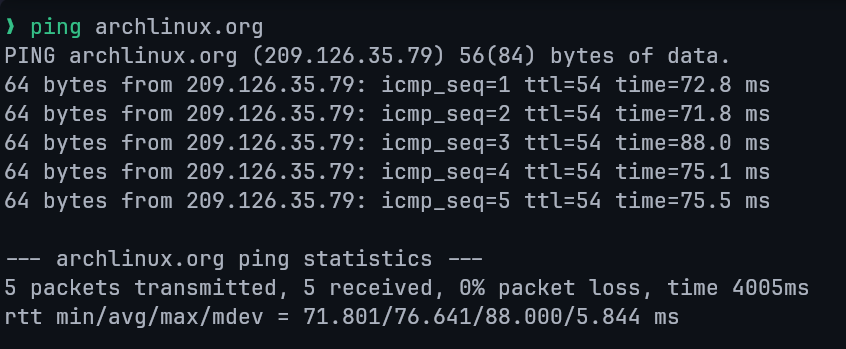
ping output includes:
- Number of packets transmitted
- Number of packets received
- Round-trip time (time taken by the packet to return) statistics
Syntax:
ping [options] <destination>Where <destination> is a DNS name or an IP address.
Successful ping example:
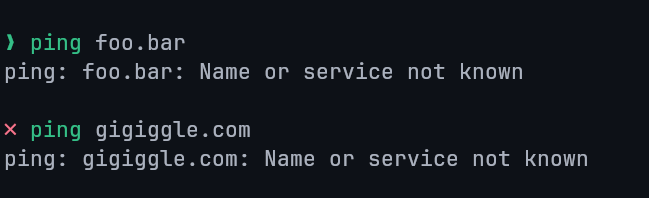
Unsuccessful ping example:
3. Network Interface & Configuration Commands
ifconfig (Interface Configurator)
The ifconfig command, short for Interface Configurator, is used to display network addresses and configure network interfaces.
It allows administrators to view interface details, activate or deactivate interfaces, and assign IP addresses.
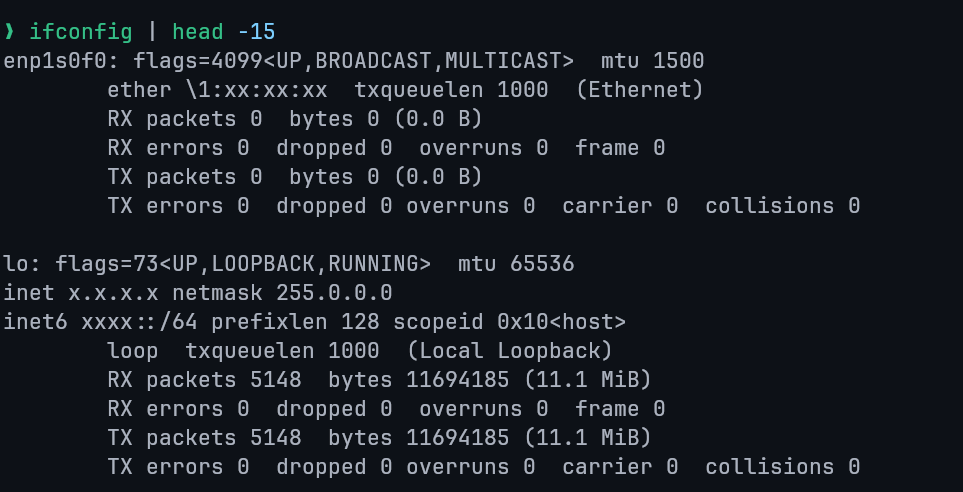
Information displayed includes:
- MTU (Maximum Transmission Unit)
- MAC address
- IP address
Running ifconfig without arguments shows all active interfaces.
NOTE
ifconfig is deprecated on modern systems. Prefer the ip command for current Linux distributions.
Common usage examples:
View settings for specific interfaces:
ifconfig eth0    # Ethernet interface
ifconfig wlan0   # Wireless interface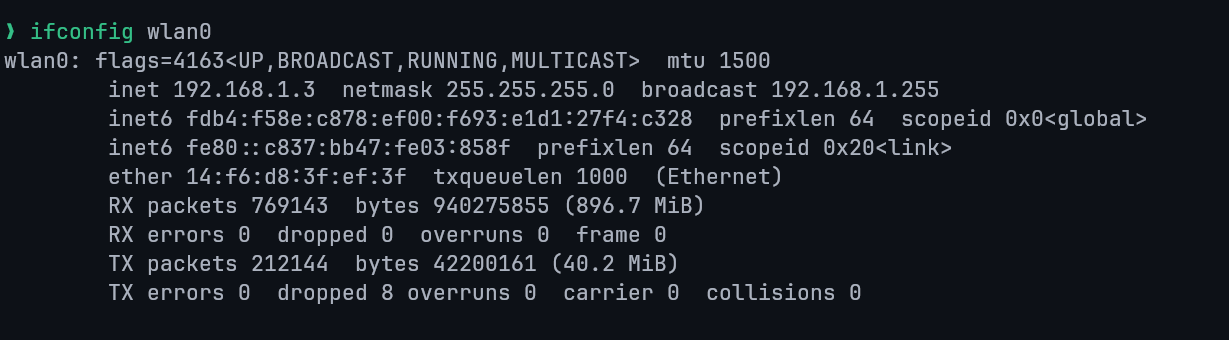
Show all network interfaces, including inactive ones:
ifconfig -aDeactivate an interface:
ifconfig eth0 downActivate an interface:
ifconfig eth0 upAssign IP address, netmask, and broadcast address:
ifconfig eth0 192.168.1.102 netmask 255.255.255.0 broadcast 192.168.1.255ip Command
The ip command is the modern replacement for ifconfig, route, and arp.
It provides a unified interface for managing network configuration.
View interface information:
ip a
ip addr
ip addr show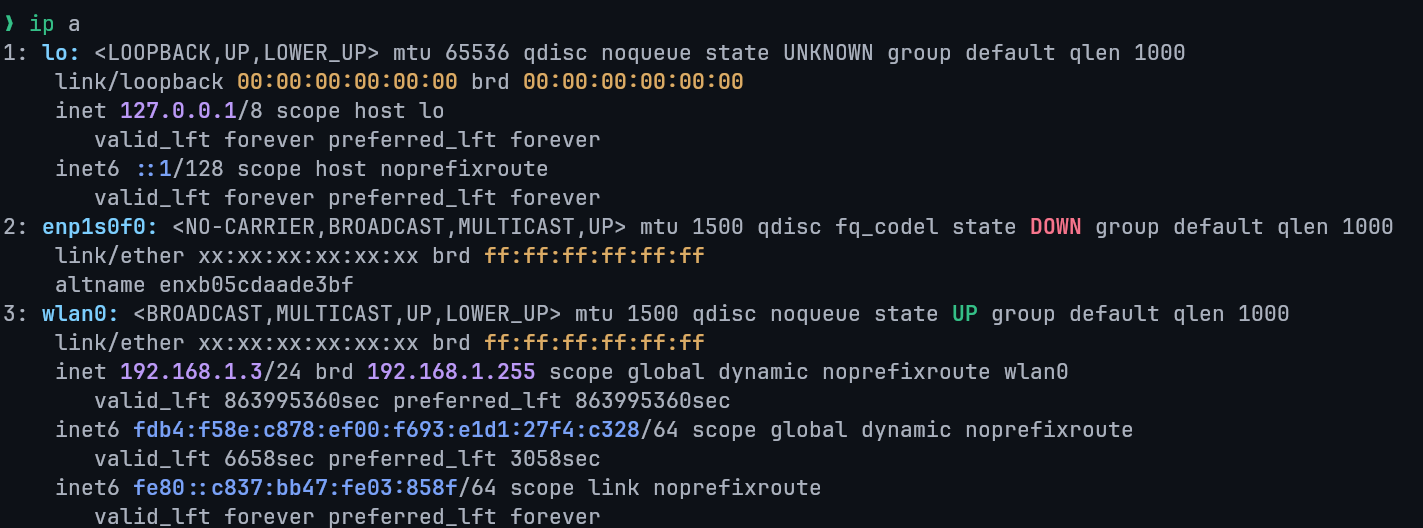
hostname
The hostname command displays the system's current hostname.
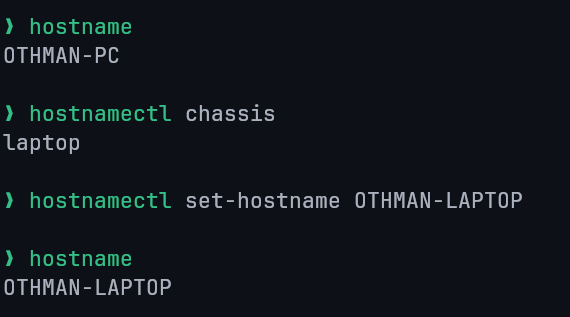
To permanently change the hostname across reboots, use hostnamectl.
route
- Purpose: Display or manipulate the IP routing table
- Syntax:
route - Add a route example:
route add -net 192.168.90.0/24 gw 10.0.0.14. Route and Path Tracing Commands
traceroute
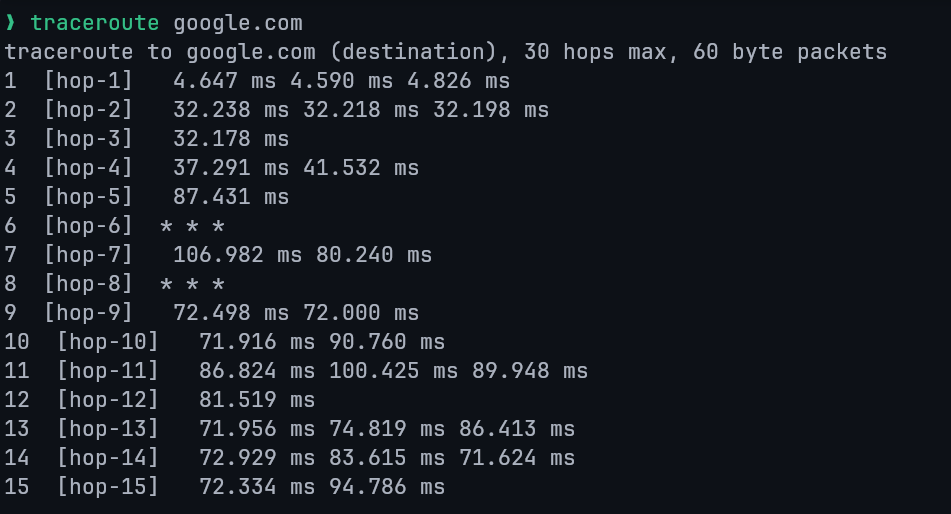
The traceroute command displays the path packets take to reach a destination by listing each router (hop) along the way.
It is commonly used to diagnose slow or failing connections when ping results are abnormal.
tracepath
The tracepath command provides similar functionality to traceroute but does not require root privileges.
Key uses:
- Identify network latency points
- Trace packet paths
- Display intermediate devices
5. DNS Query Commands
DNS resolution is a core networking concept. These tools allow administrators to troubleshoot and inspect DNS records directly from the command line.
host
Performs DNS lookups to resolve domain names to IP addresses and supports reverse lookups.

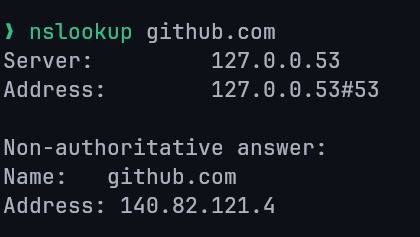
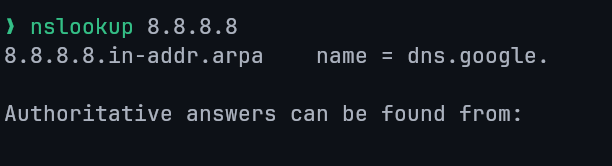
nslookup (Name Server Lookup)
Queries DNS servers to resolve domain names and IP addresses.
Domain lookup:
Reverse IP lookup:
Querying Specific DNS Records
- NS record: Identify authoritative name servers
nslookup -type=ns facebook.com- MX record: Identify mail servers for a domain
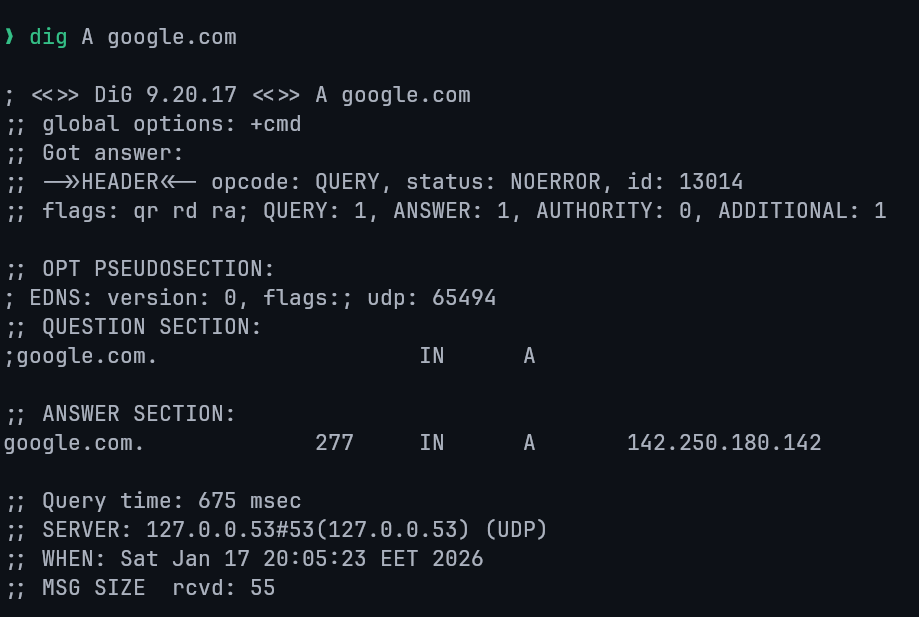
nslookup -type=mx outlook.comdig (Domain Information Groper)
A powerful and flexible DNS query tool commonly used for troubleshooting. It provides detailed DNS response data.
6. Connection & Port Information Commands
netstat (Network Statistics)
Displays network statistics including open sockets, routing tables, and active connections.
Although deprecated in favor of ss, it remains relevant for legacy systems.
View all connections:
netstat -a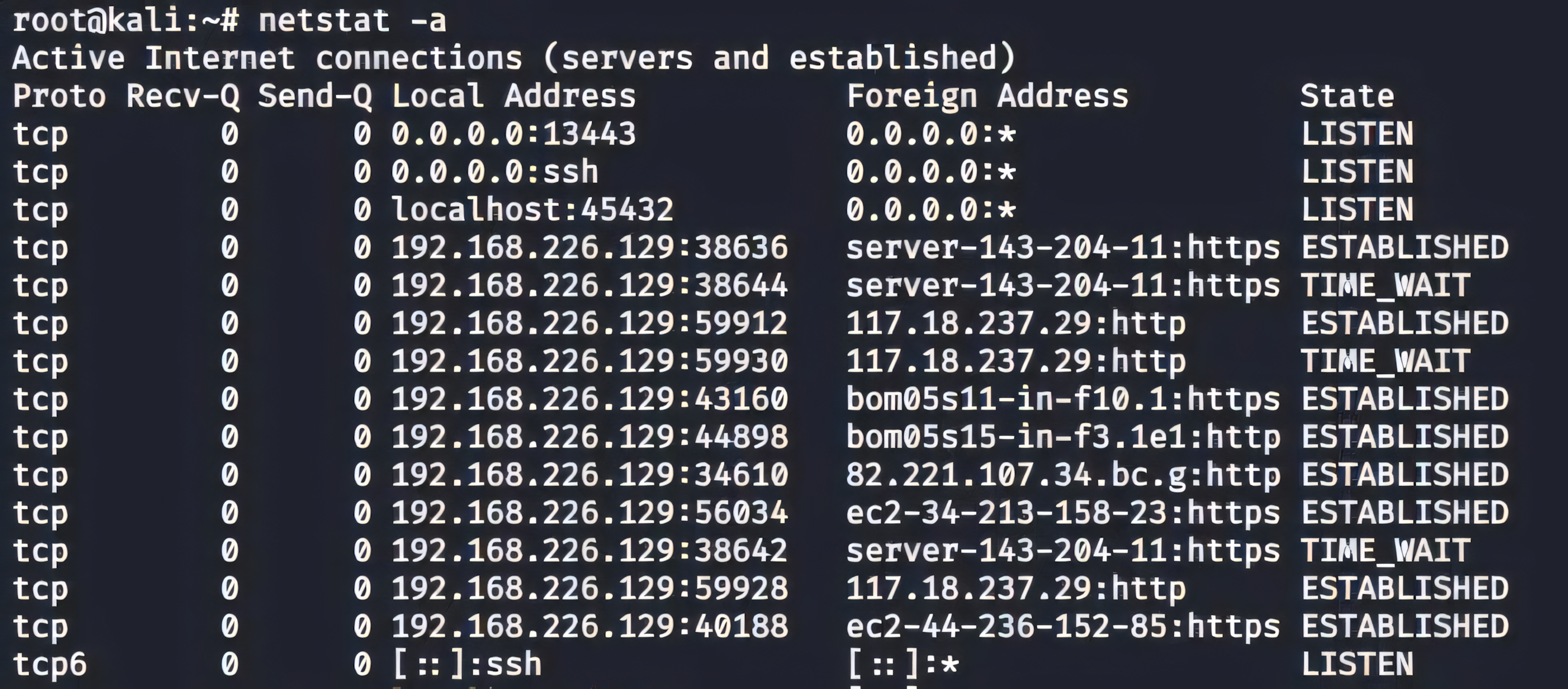
Common options:
netstat -a: Show all connectionsnetstat -i: Show network interfacesnetstat -nlpt: Show listening ports with PIDs (root required)
View only active (ESTABLISHED) connections:
netstat -atnp | grep ESTABLISHEDList protocol-specific connections:
netstat -at   # TCP only
netstat -au   # UDP only
Display protocol statistics:
netstat -sss (Socket Statistics)
- Purpose: Faster and more detailed replacement for
netstat - Syntax:
ssarp (Address Resolution Protocol)
Displays and modifies the ARP cache, which maps IP addresses to MAC addresses.
arp    # Print the current content of the ARP table.
arp -e # display (all) hosts in default (Linux) style