Lecture 2: Linux Directories
Directory
What is a Directory?
A directory is a container for system and data files — essentially a folder used to organize files within the filesystem.
Linux vs. Windows Directory Structure
- Windows: Each drive (e.g.,
C:\,D:\) has its own root. - Linux: A single root (
/) exists for the entire system; all files and directories branch from it.
Linux Directory Structure
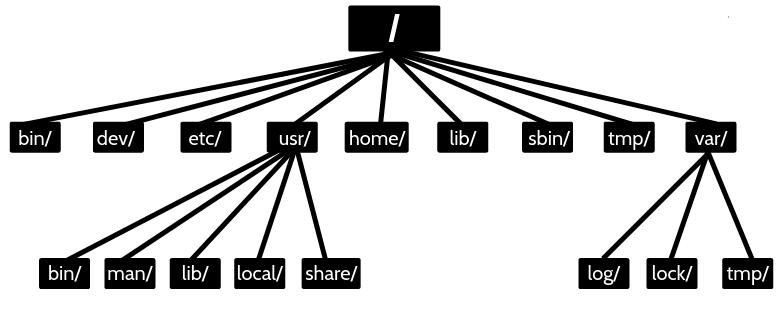
| Directory | Purpose | Directory | Purpose |
|---|---|---|---|
/bin | User Binaries. | /sbin | System Binaries. |
/etc | Configuration Files. | /dev | Device Files. |
/proc | Process Information. | /var | Variable Files. |
/tmp | Temporary Files. | /usr | User Programs. |
/home | Home Directories. | /boot | Boot Loader Files. |
/lib | System Libraries. | /opt | Optional Applications. |
/mnt | Mount Directory. | /media | Removable Devices. |
/srv | Service Data. | /run | Volatile runtime data. |
Difference Between / and /root
| Directory | Description |
|---|---|
/ | The root directory, top of the Linux file hierarchy. Every directory is a subdirectory of /. |
/root | The home directory of the system administrator (root user). |
The /boot Directory
- Contains essential boot files, including the Linux kernel and bootloader (e.g. GRUB).
- Required for system startup; losing this directory prevents the OS from booting.
- Static and unshareable directory used before user-mode processes start.
Linux Directory Commands
| Command | Description |
|---|---|
pwd | Prints the current working directory path. |
ls | Lists directory contents. |
cd | Changes the current directory. |
mkdir | Creates a new directory. |
rmdir | Removes an empty directory. |
pwd Command
Description
- pwd stands for Print Working Directory.
- Displays the absolute path of the current directory.
- Exists as both a shell built-in and a binary (
/bin/pwd).
Syntax
pwd    # Print the full filename of the current working directory.
pwd -L # Use the $PWD environment variable, even if it contains symlinks
pwd -P # Resolve all symlinks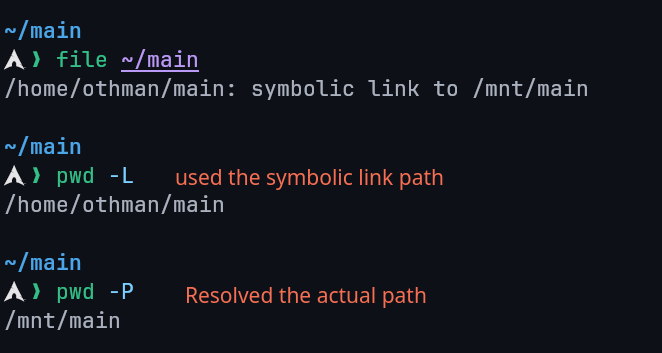
$PWD Environment Variable
- Stores the path of the current working directory.
echo $PWDgives the same output ofpwd -L.
Options
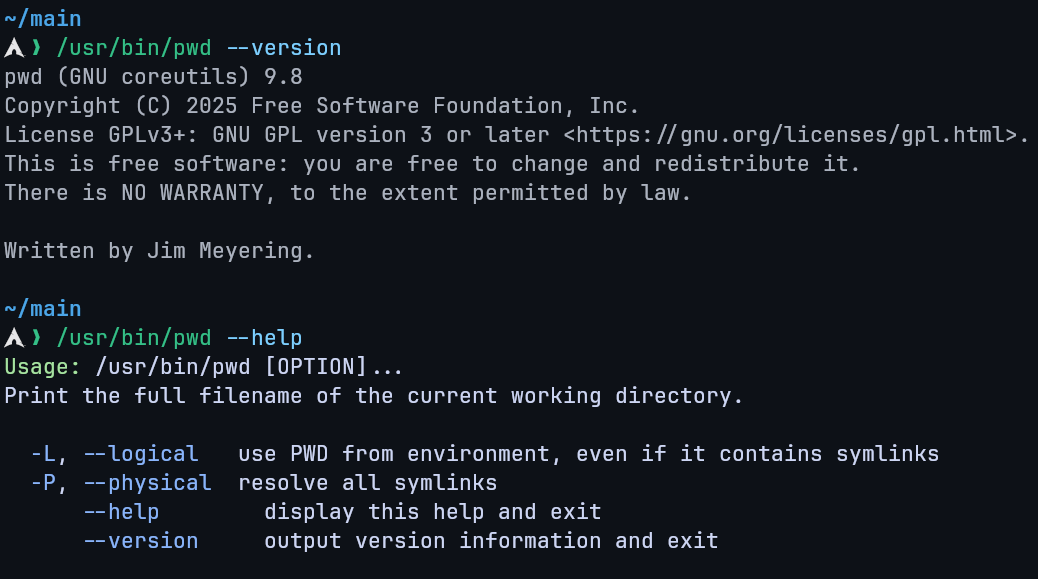
--help: Displays help for the command.--version: Displays version information.
cd Command
Description
- cd stands for Change Directory.
- Used to move between directories.
- Available as a shell built-in.
Syntax
cd [directory]Examples
cd /         # Move to the root directory
cd           # Move to home directory
cd ~         # Move to home directory
cd Documents # Move to a subdirectory
cd ..        # Move to parent directory
Absolute vs Relative Paths
- Absolute Path: Starts from
/(root). Example:/home/user/Documents - Relative Path: Starts from the current directory. Example:
../Downloads
Path Completion
- Press
Tabto auto-complete filenames and directories.
ls Command
Description
Lists the files and directories within a directory (by default the current working directory).
Syntax
ls [options] [directory]Common Options
| Option | Description |
|---|---|
-a, --all | Include hidden files (. prefix). |
-A, --almost-all | Show hidden files but omit . and ... |
-d, --directory | List directories themselves, not their contents. |
-g | Show group ownership instead of file owner. |
-h, --human-readable | Show human-readable sizes (e.g., KB, MB). |
-i, --inode | Show inode numbers. |
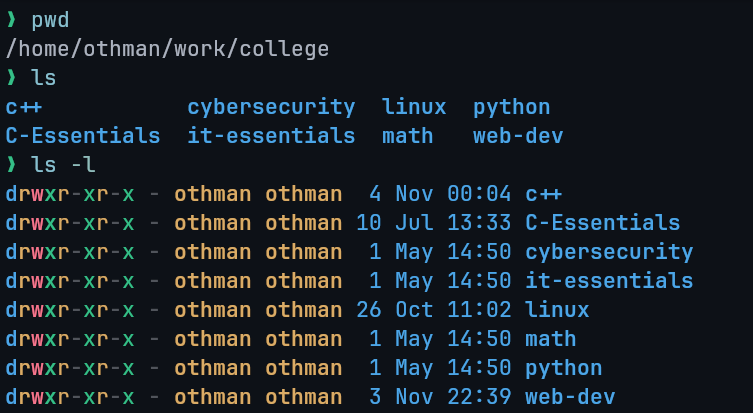
-l | Long listing format with detailed info. |
-r, --reverse | Reverse the sorting order. |
-R, --recursive | Recursive listing including subdirectories. |
-S | Sort by file size, largest first |
-t | Sort by modification time, newest first. |
ls -l Format Fields
- Permissions: e.g.,
-rwxr-xr--(user/group/others). - Links: Number of hard links.
- Owner: File owner.
- Group: Group ownership.
- Size: File size in bytes.
- Date/Time: Last modification.
- Name: File or directory name.
Custom Block Sizes:
| Unit | Unit |
|---|---|
| K = Kilobyte | M = Megabyte |
| G = Gigabyte | T = Terabyte |
| P = Petabyte | E = Exabyte |
| Z = Zettabyte | Y = Yottabyte |
ls -l --block-size=M # Display sizes in megabytes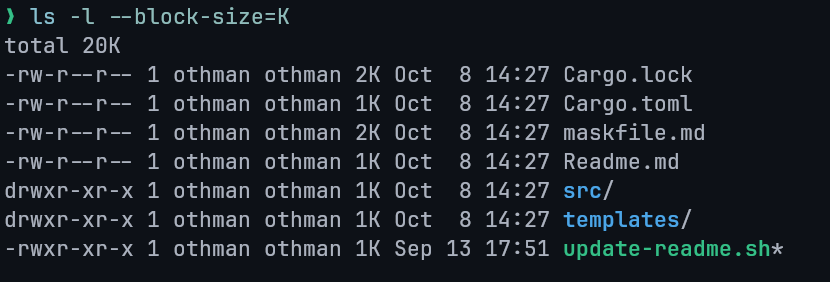
Hidden Files and Directories
- Hidden files start with a dot (
.), e.g.,.bashrc. ls -a: Lists all files including.(current directory) and..(parent directory).ls -A: Lists hidden files but omits.and...
Reasons for Hidden Files:
- Keeps directories clean.
- Hides backups or configuration files.
- Prevents accidental deletion.
Other Examples
ls ~-> Lists home directory contents.ls ../-> Lists parent directory contents.ls -g-> Excludes owner column from output.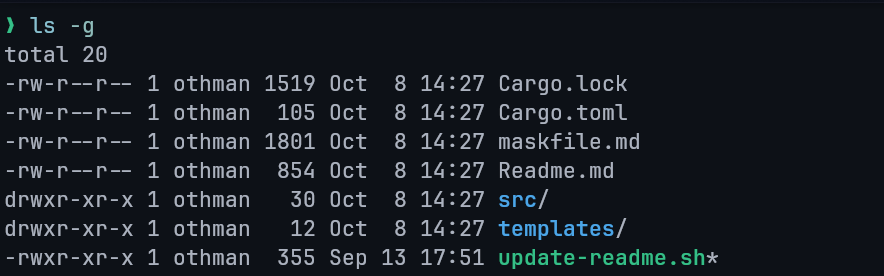
ls -R-> Recursively lists subdirectories.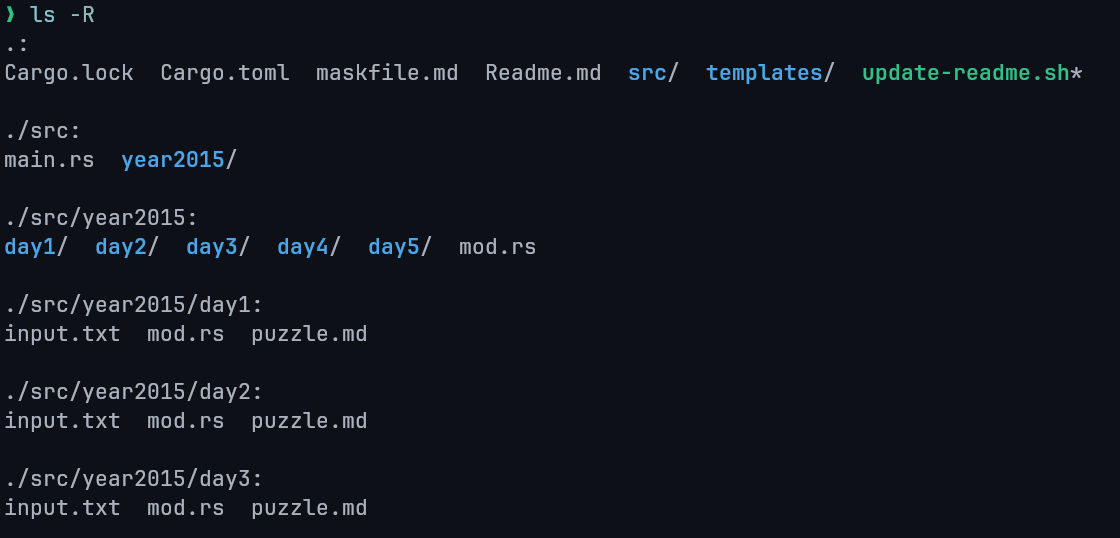
mkdir Command
Description
Creates directories in the filesystem.
Syntax
mkdir [options] directory_nameOptions
| Option | Description |
|---|---|
-p / --parents | Create parent directories if needed. |
-v / --verbose | Print a message for each directory created. |
-m MODE | Set permissions (same format as chmod). |
--help | Display help information. |
--version | Show version info. |
Examples
mkdir new_folder
mkdir -p dir1/dir2/dir3
mkdir -m 755 secure_dir # Create a new directory with rwx-rw-rw- permissions
rmdir Command
Description
Removes empty directories only.
Syntax
rmdir [options] directory_nameExample
rmdir temp_folderRecursive Deletion
rmdir -p parent/childDeletes a directory and its empty parent directories.
Renaming Directories
Linux uses the mv command to move or rename directories (and files).
There is no dedicated rename command.
Syntax
mv [options] old_name new_nameOptions
| Option | Description |
|---|---|
--backup | Creates a backup before overwriting. |
-f | Forces overwrite without confirmation. |
-i | Asks before overwriting. |
-v | Verbose output showing operations. |
rename Command
Description
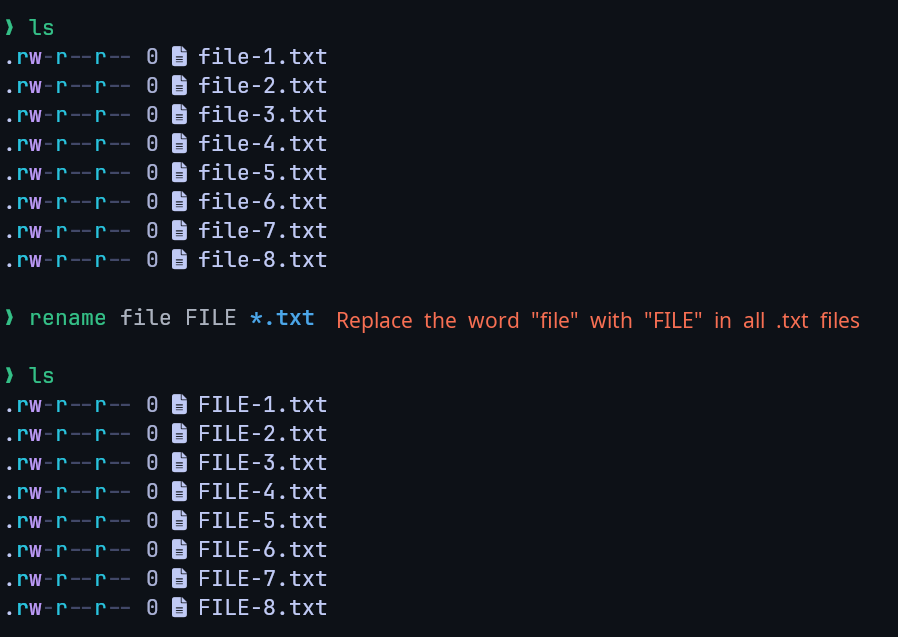
Used for batch renaming of multiple files or directories.
May need to be installed depending on the distribution.
Example
Installation
# Arch Linux (btw)
sudo pacman -S rename

# Debian / Ubuntu
sudo apt install rename

# Fedora
sudo yum install prename