IT Essentials Lecture 7: Operating Systems
What is an Operating System?
An Operating System (OS) is essential system software that manages hardware and software resources on a computer or device. It acts as an intermediary between users and hardware, enabling interaction and efficient task management.
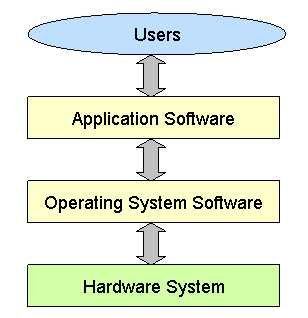
Key Functions:
- Resource Management: Controls hardware resources like CPU, memory, storage, and peripherals.
- User Interface: Provides interfaces (CLI or GUI) for user interaction.
- Examples: Windows, macOS, Linux, Android, iOS.
Basic Functions of an Operating System
An operating system performs four primary functions:
- Control hardware access
- Files and folders management
- Provide user interface
- Manage applications
1. Control Hardware Access
The operating system manages the interaction between applications and hardware. This includes installing device drivers—small programs provided by hardware manufacturers to facilitate communication between the OS and the device.
- Plug and Play (PnP) simplifies hardware detection and driver installation:
- Automatically detects PnP-compatible hardware.
- Installs the necessary driver and updates the registry.
Example: Installing a New Printer
- Connecting the Printer: The OS detects the hardware.
- PnP Detection: The OS searches for and installs a compatible driver.
- Driver Installation: The driver enables communication between the OS and the printer.
- Resource Allocation: Assigns memory, communication channels, and interrupts.
- Registry Update: Adds device-specific details for future reference.
- Printing a Document: Applications communicate with the printer through the OS.
2. Files and Folder Management
The OS organizes data in a structured format using files and directories.
- File: A block of related data with a single name.
- Directory: A container for files and other directories.
- Subdirectories (Windows: Subfolders) allow hierarchical organization.
3. Provide User Interface
The OS enables user interaction through:
- Command Line Interface (CLI): Text-based commands.
- Examples: Windows Command Prompt, Linux Terminal.
- Graphical User Interface (GUI): Visual elements like menus and icons.
- Examples: Ubuntu (Linux), Windows OS.
4. Manage Applications
The OS ensures efficient allocation of resources to applications by:
- Locating and loading applications into RAM.
- Providing APIs to maintain compatibility between applications and the OS.
Examples of APIs:
- OpenGL: Cross-platform graphics specification.
- DirectX: Multimedia-focused APIs for Windows.
- Windows API: Ensures backward compatibility with older Windows applications.
- Java: APIs for Java development.
Terms
- All devices require an operating system (OS) to operate.
- The OS boots the computer, manages the file system, and supports multiple users, tasks, or CPUs.
Key Terms:
- Multi-user: Allows two or more users with individual accounts to work with programs and peripherals simultaneously.
- Multitasking: Enables running multiple applications at the same time.
- Multiprocessing: Supports two or more CPUs for better performance.
- Multithreading: Breaks a program into smaller parts that can run concurrently.
Types of Operating Systems
Categories:
- Single-user, Single-tasking: Designed for one user and one task at a time (e.g., early versions of DOS).
- Single-user, Multi-tasking: Allows one user to run multiple applications simultaneously (e.g., Windows, macOS).
- Multi-user: Supports multiple users with individual accounts and resource management (e.g., Linux, UNIX).
- Real-time OS (RTOS): Designed for real-time applications like embedded systems and medical devices.
- Distributed OS: Manages independent computers and presents them as a single system (e.g., Google's distributed systems).
Comparison of Operating System Types
| OS Type | Users | Tasks | Performance |
|---|---|---|---|
| Single-user, Single-tasking | One user | One task at a time | Low system demands; suited for basic operations. |
| Single-user, Multi-tasking | One user | Multiple tasks in parallel | Moderate demands; performance depends on system resources (CPU, RAM). |
| Multi-user | Multiple users | Multiple tasks for each user | High performance required to allocate resources across users efficiently. |
| Real-time OS (RTOS) | Typically single-user | Real-time task processing | Ultra-low latency for tasks like controlling machinery or critical systems. |
| Distributed OS | Multiple users across systems | Tasks distributed over networked nodes | High performance for large-scale tasks; can suffer from network latency in distributed setups. |
Popular Operating Systems
Windows:
- Most widely used OS for personal computers.
- Versions: Windows 7, 8, 10, 11.
Linux:
- Open-source and highly customizable.
- Common distributions: Ubuntu, Fedora, CentOS, Debian, Arch.
macOS:
- Apple's proprietary OS for Mac computers.
- Known for stability, security, and hardware integration.
Android:
- Mobile OS based on Linux, used in smartphones and tablets.
iOS:
- Apple's mobile OS for iPhones and iPads, offering security and ecosystem integration.

32-bit vs. 64-bit Processor Architecture
The architecture determines the processing power and memory handling of a system.
32-bit Systems:
- Processes 32 bits of data at a time.
- Limited to addressing up to 4 GB of RAM.
- Compatible only with 32-bit programs and OS.
64-bit Systems:
- Processes 64 bits of data at a time.
- Can address significantly more memory (up to terabytes).
- Compatible with both 32-bit and 64-bit programs (on a 64-bit OS).
| Feature | 32-bit | 64-bit |
|---|---|---|
| Data Processing Capacity | Processes 32 bits at a time. | Processes 64 bits at a time. |
| RAM Addressing Limit | Up to 4 GB. | Over 16 EB (practical limits: 128 GB to 2 TB). |
| Software Compatibility | Only 32-bit programs. | Both 32-bit and 64-bit programs. |
| Performance | Limited to smaller data sizes. | Faster with larger datasets and multitasking. |
| Examples of Processors | Intel Pentium, AMD Athlon 32-bit. | Intel Core i5/i7/i9, AMD Ryzen, Apple M1. |
Other Types of Operating Systems
Desktop Operating Systems:
- Designed for SOHO environments.
- Supports single users with basic sharing capabilities on small networks.
- Examples: Microsoft Windows, Apple macOS, Linux.
Network Operating Systems (NOS):
- Adds functionality for networked environments.
- Features:
- Supports multiple users.
- Runs multi-user applications.
- Provides robust and redundant features.
- Enhances security compared to desktop OSs.
Checking OS Compatibility
- Operating systems (OS) need periodic upgrades to remain compatible with the latest hardware and software.
- Before upgrading, verify the new OS's minimum hardware requirements to ensure compatibility.
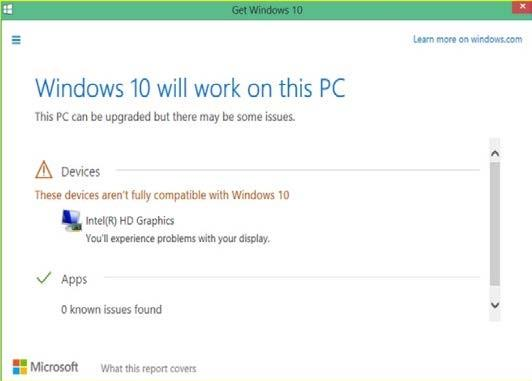
Tools for Compatibility Checks:
- Get Windows 10:
- Automatically downloaded via Windows Update on Windows 7 SP1 and Windows 8.1 systems.
- Assesses system compatibility for upgrading to Windows 10.
Windows OS Upgrades
Upgrade Paths:
- Windows 7 and Windows 8 can be upgraded to Windows 10.
- Windows Vista and Windows XP require a clean installation for Windows 10, as no direct upgrade path is available.
Upgrade Process:
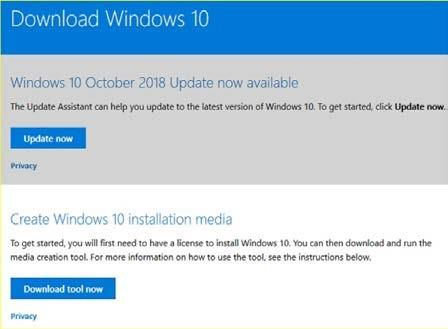
- Use the Windows 10 Update Assistant (available on the official Download Windows 10 website) for systems running Windows 7 or 8.
- For Windows XP or Vista:
- Perform a clean installation using Windows 10 installation media.
- Create installation media with the Create Windows 10 installation media tool.
Minimum Hardware Requirements and Compatibility
- Ensure hardware meets the minimum requirements for the new OS.
- Evaluate whether to upgrade current hardware or purchase new equipment through a cost analysis.
Possible Hardware Upgrades:
- RAM Capacity: Increase memory to meet modern application demands.
- Hard Drive: Upgrade to a larger or faster drive (e.g., SSDs for better performance).
- CPU: Replace with a newer processor for improved efficiency.
- Video Card: Enhance GPU memory and speed for better graphics performance.
- Motherboard: Upgrade for compatibility with newer components.
| Aspect | Windows 10 | Windows 8.1 | Windows 7 |
|---|---|---|---|
| Processor | 1 GHz or faster with 2 or more cores | ||
| RAM | 1 GB for 32-bit, 2 GB for 64-bit | ||
| Storage | 32 GB or larger | 16 GB for 32-bit, 20 GB for 64-bit | |
| Graphics Card | DirectX 9 or later with WDDM 1.0 driver | ||
| Display | 800x600 px | 1024x768 px | 800x600 px |
| Internet Connectivity | Required for updates and some features | Optional, required only for updates | |
Installing Windows
Preparing the Storage Device
When installing an OS, the storage device must be prepared to store the OS and associated files. The process includes:
A. Partitioning
- Divides the storage device into sections called partitions, which can store data or different OSs.
- Types of partitions:
- Primary Partition: Contains the OS and is used for booting.
- Extended Partition: Used to create additional logical drives for administrative purposes.
- Logical Drive: A subsection of an extended partition for data storage.
B. File System Creation
- Defines how data is stored, organized, and retrieved.
- Common file systems:
- NTFS: Default for Windows.
- FAT32: Compatible across platforms but limited to 4 GB file sizes.
- EXT4: Used by Linux.
- APFS: Used by macOS.
C. Formatting
- Prepares the partition with the selected file system.
- Erases existing data and creates a structure for file storage (e.g., Windows typically uses NTFS).
Comparison of File Systems
| Feature | NTFS | FAT32 | exFAT | EXT4 | APFS |
|---|---|---|---|---|---|
| Full Name | New Technology File System | File Allocation Table 32 | Extended File Allocation Table | Fourth Extended File System | Apple File System |
| Developed By | Microsoft | Microsoft | Microsoft | Linux Community | Apple Inc. |
| Introduced In | 1993 | 1996 | 2006 | 2008 | 2017 |
| Compatibility | Windows, limited macOS/Linux | Cross-platform | Most modern devices | Linux systems | macOS devices only |
| Max File Size | 16 Exabytes (theoretical) | 4 GB | 16 Exabytes (practical: 128 PB) | 16 Terabytes | 8 Exabytes |
| Volume Size | 16 Exabytes | 2 TB (Windows limit) | 128 Petabytes | 1 Exabyte | 8 Exabytes |
| Journaling | Yes | No | No | Yes | Yes |
| Security Features | File/folder encryption | None | None | Permissions | Encryption by default |
| Performance | Optimized for modern drives | Good for small drives | Optimized for flash storage | Optimized for Linux | Optimized for SSDs |
| Use Case | System drives, large storage | USB drives, SD cards | USB drives, SD cards | Linux systems | macOS systems |
Installation and Boot Sequence
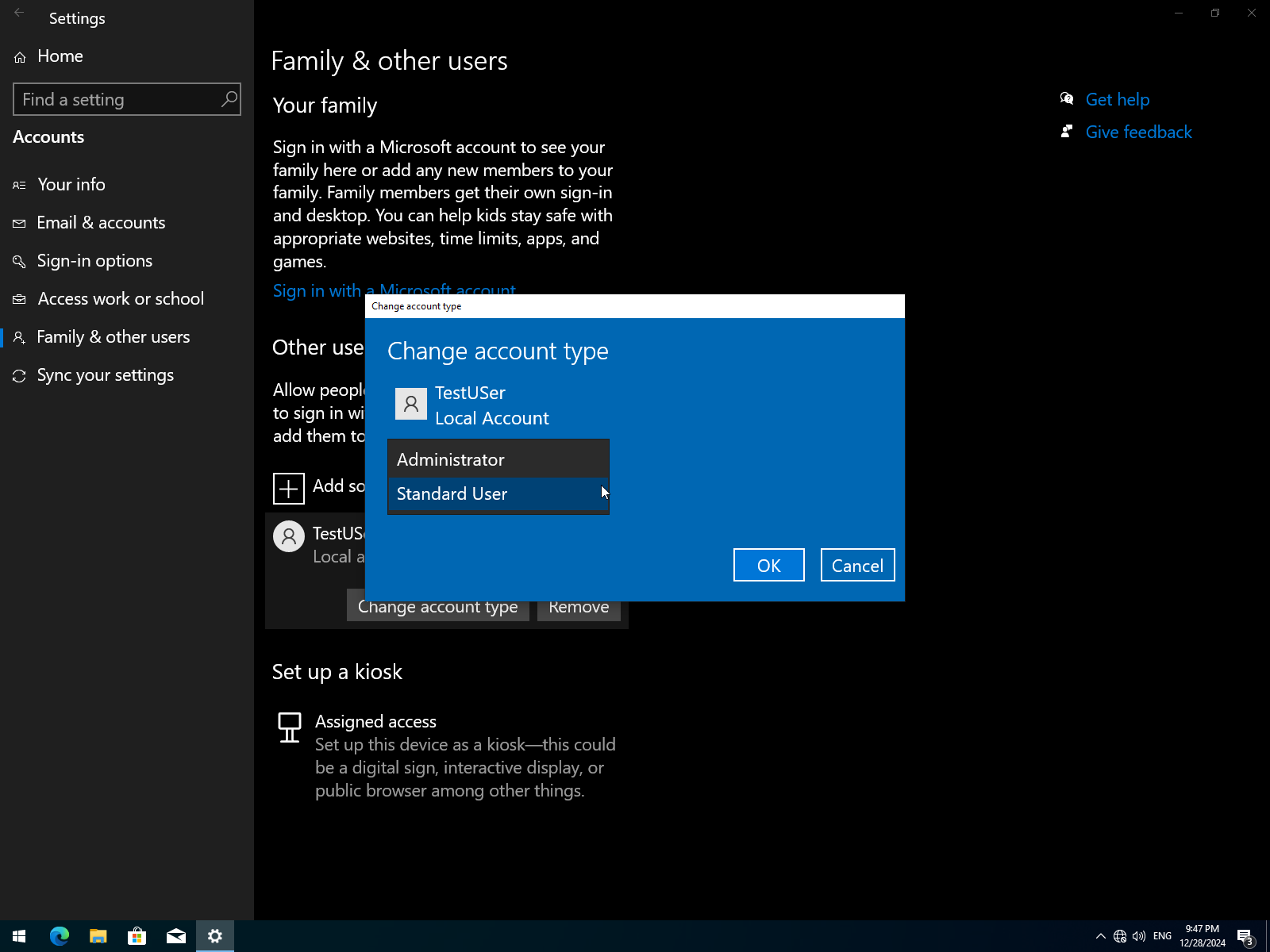
Account Creation
- Authentication: Users provide a username and password to access accounts.
- Administrator Account: Full control of the system, including global settings and program installations.
- Standard User Account: Limited access, cannot install programs.
Finalize the Installation
- Windows Update: Use to install the latest software updates, service packs, and patches.
- Device Manager: Verify hardware installation and resolve driver issues post-installation.
Disk Cloning
- Simplifies OS installation on multiple computers.
- The base system is fully configured and duplicated sector by sector onto a new disk.
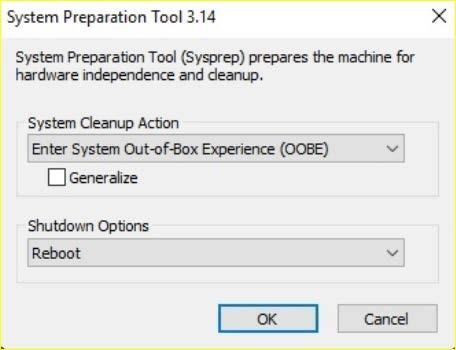
- Use Microsoft's Sysprep tool to remove unwanted settings before creating the final image.
Recovery Partition
- A hidden disk section containing an image for restoring the computer to its factory state.
- Accessed via a special key during boot or through the BIOS.
Upgrade Methods
In-Place Upgrade:
- Retains data, applications, and drivers.
- Automated via tools like System Center Configuration Manager or
setup.exe. - Suitable for upgrading Windows 7 or 8 to Windows 10.
Clean Install:
- Wipes the drive entirely.
- Requires data backup before installation.
- Provides a fresh start with no remnants of the previous OS.